Windows 11 ads!
Windows 11 Ads: How to Turn Them Off
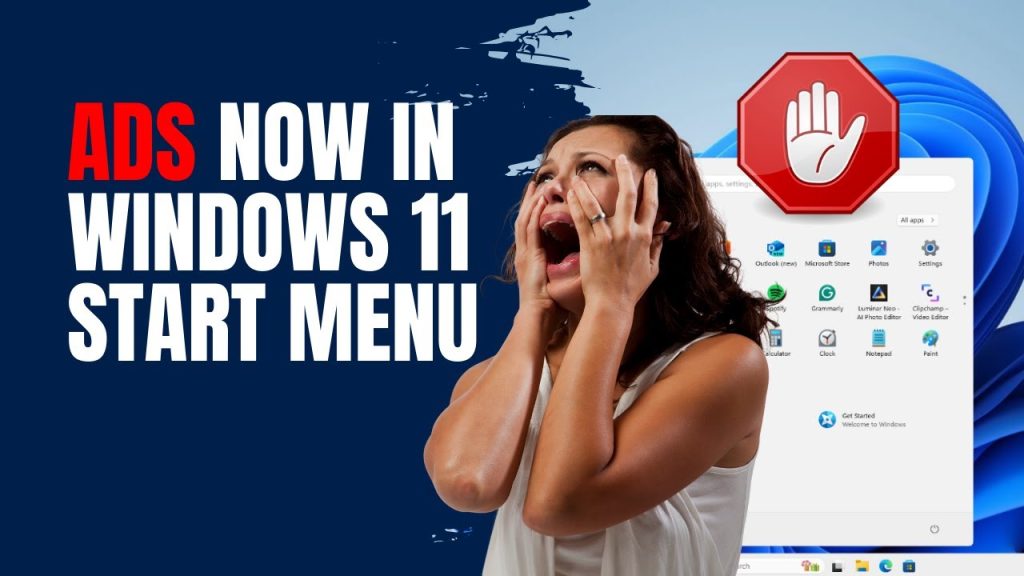
Windows 11, Microsoft’s latest operating system, has brought a modern and streamlined user interface, improved performance, and new features aimed at enhancing productivity. However, along with these upgrades, users have noticed an increase in integrated advertisements and promotional content within the OS. These ads appear in various locations, such as the Start menu, lock screen, and even the File Explorer, often promoting Microsoft services or suggesting apps from the Microsoft Store. While these ads can be seen as useful recommendations, they can also be intrusive and annoying for many users. Fortunately, there are ways to turn off most of these ads and reclaim a cleaner, ad-free experience on Windows 11.
How to Disable Ads in Windows 11
- Start Menu Ads
- Step 1: Open the Settings app by pressing
Win + I. - Step 2: Navigate to
Personalization>Start. - Step 3: Turn off the toggle for “Show suggestions occasionally in Start”.
- Step 1: Open the Settings app by pressing
- Lock Screen Ads
- Step 1: Open the Settings app by pressing
Win + I. - Step 2: Go to
Personalization>Lock screen. - Step 3: In the
Backgrounddropdown menu, select eitherPictureorSlideshow, but avoidWindows spotlight. - Step 4: Toggle off “Get fun facts, tips, tricks, and more on your lock screen”.
- Step 1: Open the Settings app by pressing
- File Explorer Ads
- Step 1: Open File Explorer.
- Step 2: Click on the
Viewmenu, then selectOptions>Change folder and search options. - Step 3: In the Folder Options window, go to the
Viewtab. - Step 4: Scroll down and uncheck “Show sync provider notifications”.
- Step 5: Click
Apply, thenOKto confirm.
- Notifications and Tips
- Step 1: Open the Settings app by pressing
Win + I. - Step 2: Go to
System>Notifications. - Step 3: Scroll down and turn off “Offer suggestions on how I can set up my device”.
- Step 4: Toggle off “Get tips, tricks, and suggestions as you use Windows”.
- Step 1: Open the Settings app by pressing
- Microsoft Edge Ads
- Step 1: Open Microsoft Edge.
- Step 2: Click on the three dots (menu) in the top-right corner and select
Settings. - Step 3: Navigate to
Privacy, search, and services. - Step 4: Scroll down to
Servicesand turn off options like “Show me suggestions from Microsoft Edge”.
Conclusion
While advertisements in Windows 11 are designed to enhance the user experience by suggesting useful apps and features, many users prefer a cleaner, ad-free interface. By following these steps, you can significantly reduce the number of ads and promotional content in your Windows 11 environment, leading to a more streamlined and enjoyable user experience. Whether you’re using your PC for work, gaming, or leisure, these adjustments can help you maintain focus and improve productivity.